WHMCS Module Installation
This guide explains how to install the Caasify WHMCS module using only the ready files in the build folder.
Overview
Use only the ready files inside the build folder when installing the Caasify WHMCS module. Do not upload the full repository and do not run build steps if you are only installing the module.
Product Marketplace Preview

1. Open the GitHub Repository
Open the repository here:
2. Download a Version
Open the repository page.
On the right side, open Releases or Versions.
Choose the version you want to install.
Download that version.
3. Use Only the Build Folder
After extracting the repository, use only build/whmcs/.
After extracting the repository, use only build/releases/cloudhub-whmcs.zip.
Do not upload the full repository to WHMCS.
4. Upload the Module to WHMCS
Option A: Open build/releases/ and find cloudhub-whmcs.zip.
Option A: Extract the ZIP and upload the extracted files into your WHMCS root folder.
Option B: Open build/whmcs/ and copy everything inside it into your WHMCS root folder.
After Upload
These should exist in your WHMCS installation: cloudhub.php and modules/addons/caasify/.
5. Add Euro Currency
Required for correct pricing
Before using the module, add Euro in WHMCS so pricing can be calculated correctly.
In WHMCS admin, go to System Settings > Payments or Currencies, depending on your WHMCS version.
Add Euro as a currency if it does not already exist.
Make sure the Euro conversion rate is correct.
6. Enabling the Module
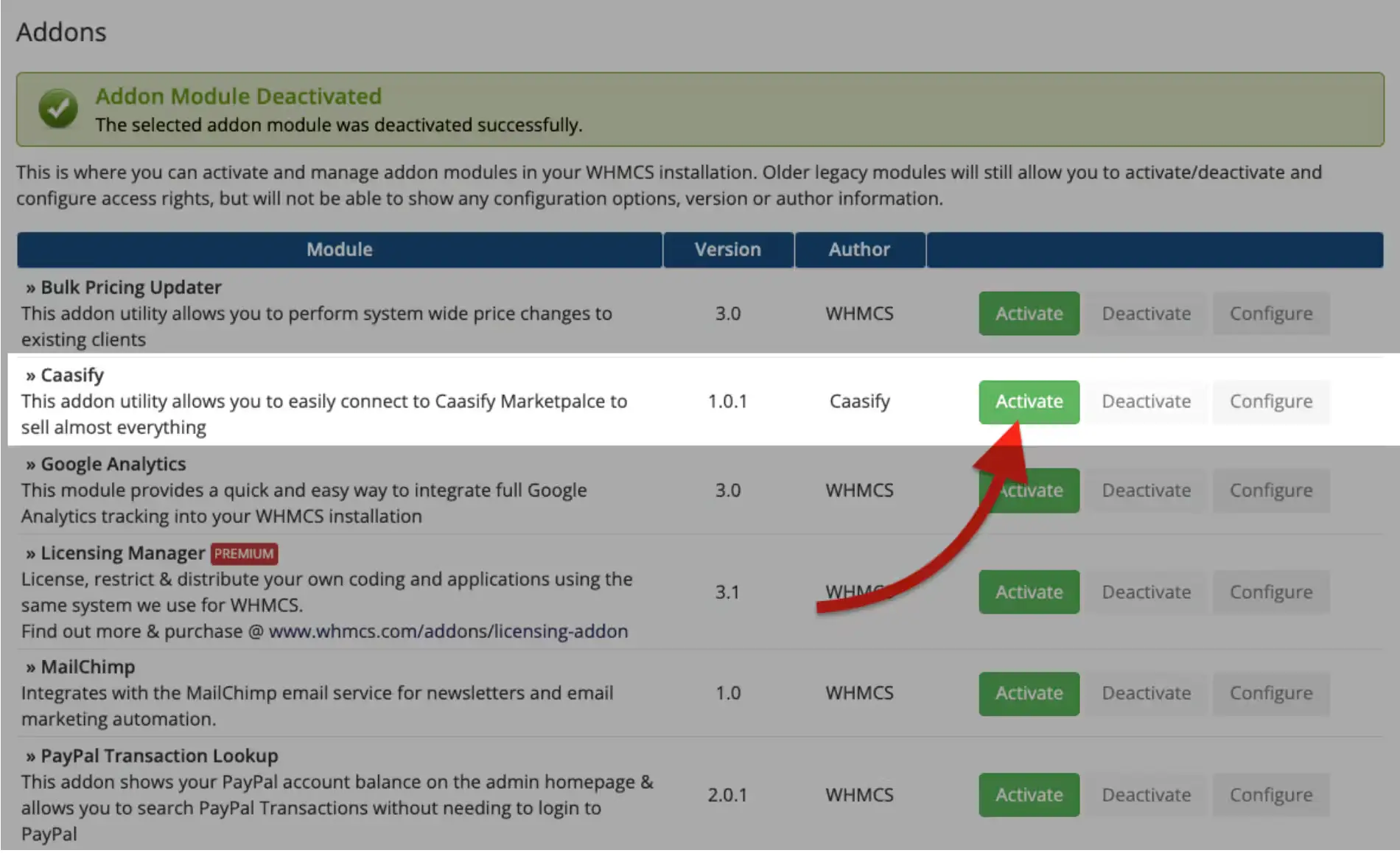
Log in to your WHMCS admin area, open the Addons section, find Caasify, and enable the module.
Enable the Addon
Open Addons in WHMCS and click Activate for Caasify.
The module must be enabled before the Caasify settings page becomes available.
7. Configuring the Module
After enabling the module, open Caasify from the Addons area in WHMCS.
Enter a valid Hub Base URL.
Enter your Reseller API Token.
Configuration
Usually the Hub Base URL is https://hub.caasify.com. Make sure the Hub Base URL, Reseller API Token, and Euro currency are configured correctly.
8. Placing an Order
After the module is configured, open your WHMCS installation and place a new order through the Caasify module area.
Use the Caasify module area to start a new order.
Select the service you want to provision.
Submit the order.
Make sure configuration is complete before placing an order.
9. Viewing Order Details
After placing an order, open the order details page to verify the provisioned service.
Check the service status.
Review the assigned product or service information.
Confirm the order completed successfully before continuing.
10. Update the Caasify WHMCS Module
Keep the module current
When a new version is available, update the module from the latest ready release files.
Download the newer version from the GitHub releases page.Use only the files from build/whmcs/ or build/releases/cloudhub-whmcs.zip.
Replace the existing module files in your WHMCS installation with the new release files.
Open WHMCS and confirm the Caasify module still loads correctly after the update.
11. Test the Installation
Open this URL in your browser:
https://your-domain.com/cloudhub.phpIf the installation is correct, the Caasify module should load.
Troubleshooting
Common issues and solutions
Module does not appear in WHMCS
Make sure you uploaded only the ready files from build/whmcs/ or the extracted build/releases/cloudhub-whmcs.zip contents into your WHMCS root.
Caasify settings page is missing
Confirm that the addon was activated from the Addons area in WHMCS before trying to open the Caasify settings page.
Prices are not calculated correctly
Check that Euro currency exists in WHMCS and that the Euro conversion rate is configured correctly.
Orders cannot be placed successfully
Verify that Hub Base URL and Reseller API Token are entered correctly in the Caasify settings page.
Order details look incomplete
Open the order details page again after provisioning finishes and confirm the service status and assigned product information are present.
Module update causes problems
Replace the old module files only with the latest ready release files, then recheck that the module loads correctly in WHMCS.
Installation test page does not load
Confirm that cloudhub.php exists in your WHMCS root and that modules/addons/caasify/ was uploaded correctly.
Avoid common installation mistakes
Do not upload source folders like frontend/ or backend/, and do not run build steps if you are only installing the module.